
Pharmacy Review Touchpoints
Google Review QR Codes for Pharmacies and Medical Stores
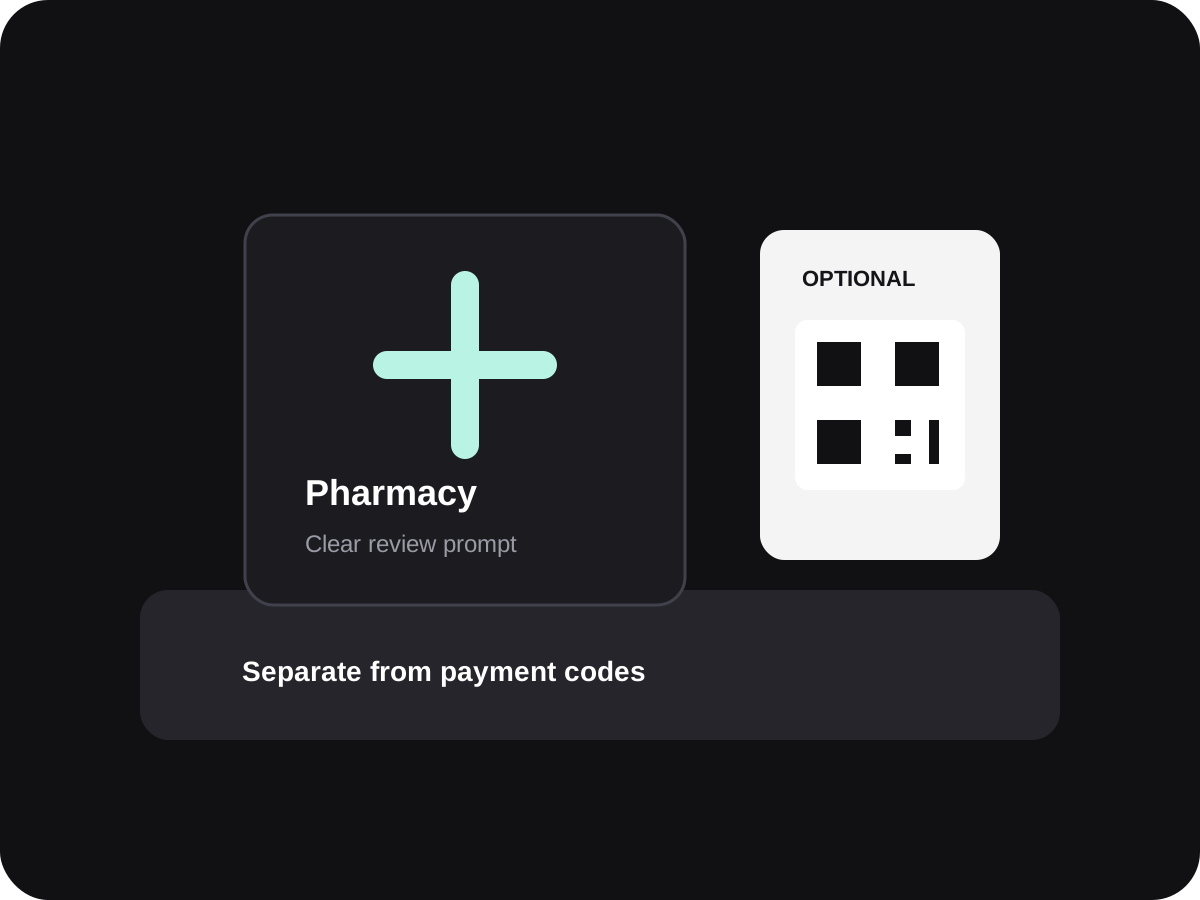
A pharmacy can make its Google review page easier to reach with a clearly labelled QR near the billing counter or on a receipt. Keep feedback about service voluntary and never invite customers to disclose health information.
- Counter and receipt placement
- Branch-specific review destination
- Privacy-aware customer wording
Can a pharmacy use a QR code to request Google reviews?
Yes. A pharmacy can share a Google review link or QR code with customers and invite honest feedback about their experience. Put it where the customer can choose to scan without slowing down billing.
Keep the review request separate from medical care. Do not ask for medicine names, diagnosis, prescription details or other sensitive health information in a public review.
Pharmacy counters need a careful review prompt
Customers may be in a hurry, handling private purchases or scanning a payment code. A review prompt must be easy to distinguish and easy to ignore.
Many QR codes look alike
A review code beside a UPI code without labels can confuse customers at the billing counter.
Several branches share a name
A QR that opens the wrong store listing can send feedback to another location.
Health details are private
Customers should never be nudged to reveal a condition, medicine or treatment in a public review.
Set up a pharmacy review QR with care
Treat this as a service-feedback invitation, not part of the purchase, prescription or payment process.
Verify each branch link
If your pharmacy has multiple Google profiles, make a location-specific QR for each counter.
Label the purpose plainly
Use words such as “Optional: share your store experience on Google” next to the code.
Keep payment codes distinct
Use clear spacing, different colours and separate labels for review and UPI payment QR codes.
Make it easy to decline
Do not block the billing queue or condition service, advice or a receipt on scanning the code.
Which pharmacy touchpoint fits?
The best place depends on whether the customer needs a printed bill or is still at the counter.
| Touchpoint | Customer moment | Privacy cue |
|---|---|---|
| Counter card | After a completed purchase | Keep the prompt optional and away from prescription information. |
| Receipt | When the customer reviews the bill later | Use a short line and a branch-specific link. |
| Follow-up message | For opted-in service updates | Send only through a channel the customer expects; avoid sharing health details. |
Simple ways staff can phrase the request
Use these as starting points, then let staff speak naturally.
At billing
If you would like, this code opens our Google page where you can share feedback about the store.
On a receipt
Optional: tell us about your pharmacy service on Google. Scan the code to open the review page.
For a branch visit
Thank you for visiting [branch name]. If you wish, share an honest review here: [link].

A simple review link for pharmacy counters
TapQR helps pharmacies create a Google review QR code and direct link to use on a counter display, receipt insert or customer follow-up.
- Create a clear scan point for each location.
- Use the QR on printed material and the link in digital follow-ups.
- Customers remain in control of what they write and submit.
A simple path from setup to customer review
Use TapQR as the access layer between your physical customer moment and your Google review destination.
-
01
Select the pharmacy location
Confirm the listing name and address so the review path belongs to the store the customer visited.
-
02
Create and test the QR
Open the review destination on a phone and verify the correct location appears.
-
03
Print a separate review prompt
Use a distinct label and visual treatment from the UPI or loyalty code.
-
04
Invite optional feedback
Let customers scan only if they choose; do not link a review to a purchase or benefit.
Why pharmacies use a dedicated review link
Less listing confusion
A location-specific QR avoids asking customers to search among similarly named branches.
A visible service-feedback option
Customers who want to comment can find the route at the counter or on a receipt.
Clearer staff guidance
A neutral label helps staff describe the invitation in one sentence.
Pharmacy placements that keep the QR clear
Place the code after the service interaction, away from medical and payment information.
- Counter card beside, not on top of, the payment QR
- Receipt footer for customers who prefer to review later
- A small sign at the exit after billing
- Customer service desk for non-clinical feedback
- A branch-specific link on the store website
- Optional service follow-up with customer consent
Review practices for a healthcare-adjacent business
A pharmacy review should not expose customer information or influence the care they receive.
Protect health information
Do not prompt customers to include diagnoses, prescriptions, medicines or identifiable health facts.
Never condition a service
A review is voluntary and must not affect medicine availability, counselling or customer assistance.
Avoid incentives and rating requests
Do not offer a reward or ask for a particular number of stars.
Keep QR destinations separate
A review prompt is not a payment method. Mark each printed code so its purpose is unmistakable.
Policy references: Google Business Profile Help: create a review link or QR code · Google Business Profile Help: tips to get more reviews
Continue building a better review journey
Use these guides to connect the page topic with other TapQR review workflows.
Questions people ask about this topic
Short answers for business owners comparing review links, QR codes, cards and staff workflows.
Can a pharmacy ask customers for Google reviews?
A pharmacy may invite honest feedback, as long as the request is optional and not tied to a purchase, medicine or service benefit.
Should a pharmacy review QR be beside the UPI code?
It can be nearby, but give it a distinct label, spacing and visual treatment so customers do not confuse the review code with a payment code.
Should customers mention medicines in a review?
Do not ask for medical details. Customers should avoid sharing sensitive health information in public feedback.
How do I handle multiple pharmacy branches?
Use and test a separate review destination for each branch with its own Business Profile.
Does TapQR publish reviews for pharmacy customers?
No. TapQR helps customers reach the review destination; customers decide whether and what to post.
Make pharmacy service feedback easy to find
Create a clearly labelled review QR and link for the correct store location, then use it as an optional customer touchpoint.