Placement Guide
Where to Place Your Google Review QR Code for Better Customer Scans
Place a Google Review QR Code where customers naturally pause after receiving value. The best spot is rarely a random wall. It is usually a counter, table, receipt, package, reception desk, invoice or follow-up message.
- Use natural pause points
- Match placement to the business type
- Avoid hidden or rushed scan spots
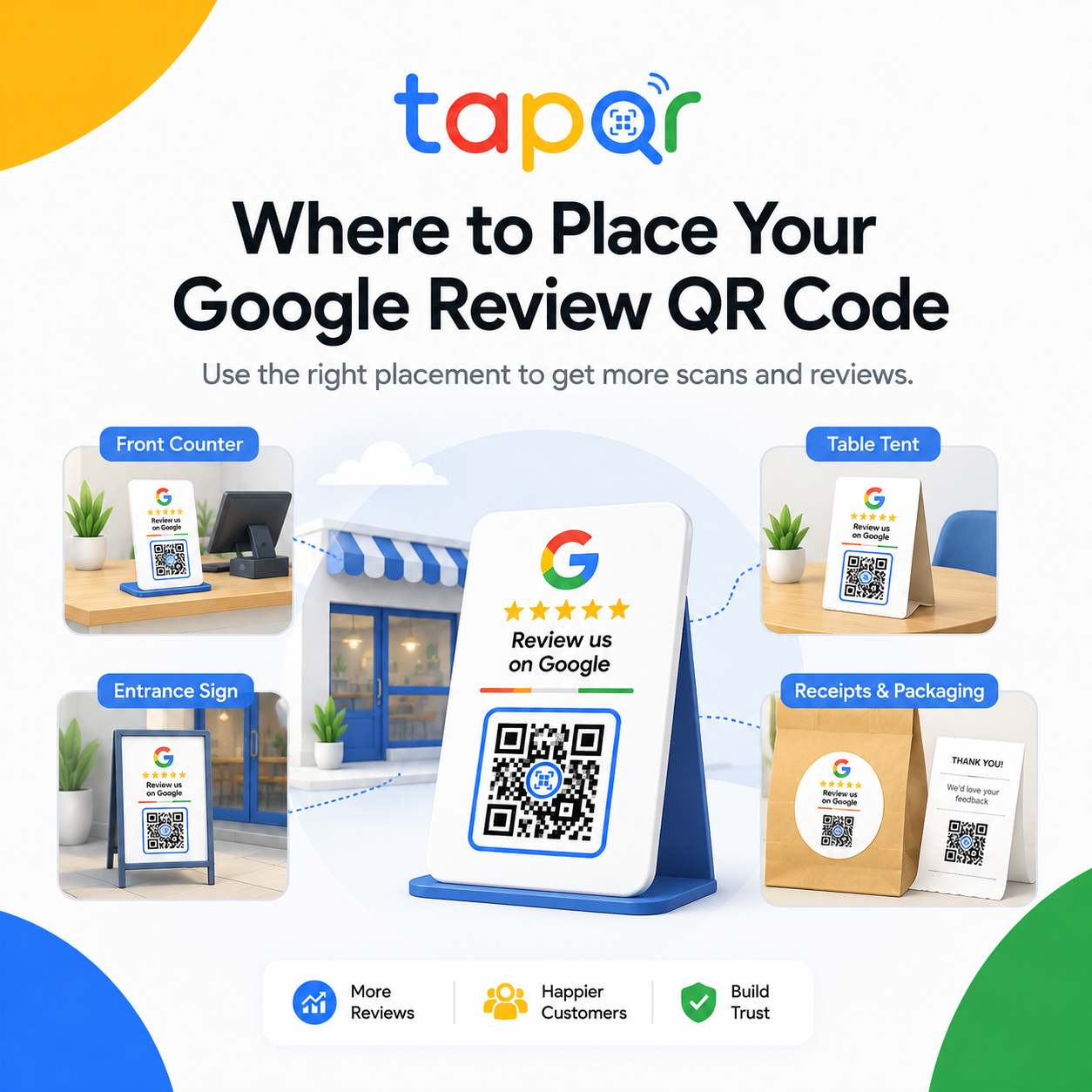
Put the QR code at the end of the customer journey.
The best placement is the place where the customer has just completed the meal, purchase, appointment, stay, delivery or service handover.
If customers are waiting, paying, collecting, checking out or receiving a thank-you message, the QR code has a better chance of being noticed and understood.
Why placement affects scan behavior
A working QR code still fails if customers do not see it, do not understand it or see it at the wrong moment.
Too early in the visit
A QR code at entry asks for feedback before the customer has experienced anything.
Too far from staff
Hidden posters and distant wall stickers do not benefit from a natural staff mention.
Too close to other QR codes
Payment, menu and Wi-Fi QR codes can create confusion when placed together without clear labels.
How to choose the best placement
Start with customer timing, then match the physical format.
Find the completion moment
Identify when the customer has received the product, service or handover.
Choose a visible surface
Use a stand, card, poster, receipt, bag insert or invoice based on where the customer looks.
Keep scan distance realistic
Counters and tables allow smaller cards. Wall posters need larger codes and better contrast.
Pair it with short wording
Use one line that makes it clear the code opens a Google review page.
Simple ways staff can phrase the request
Use these as starting points, then let staff speak naturally.
At payment
The QR code here opens our Google review page if you would like to share feedback.
At checkout
Thank you for visiting. You can scan this before you leave or use the link later.
In follow-up
Here is the review link from our counter card in case later is easier.
Use TapQR across several placements
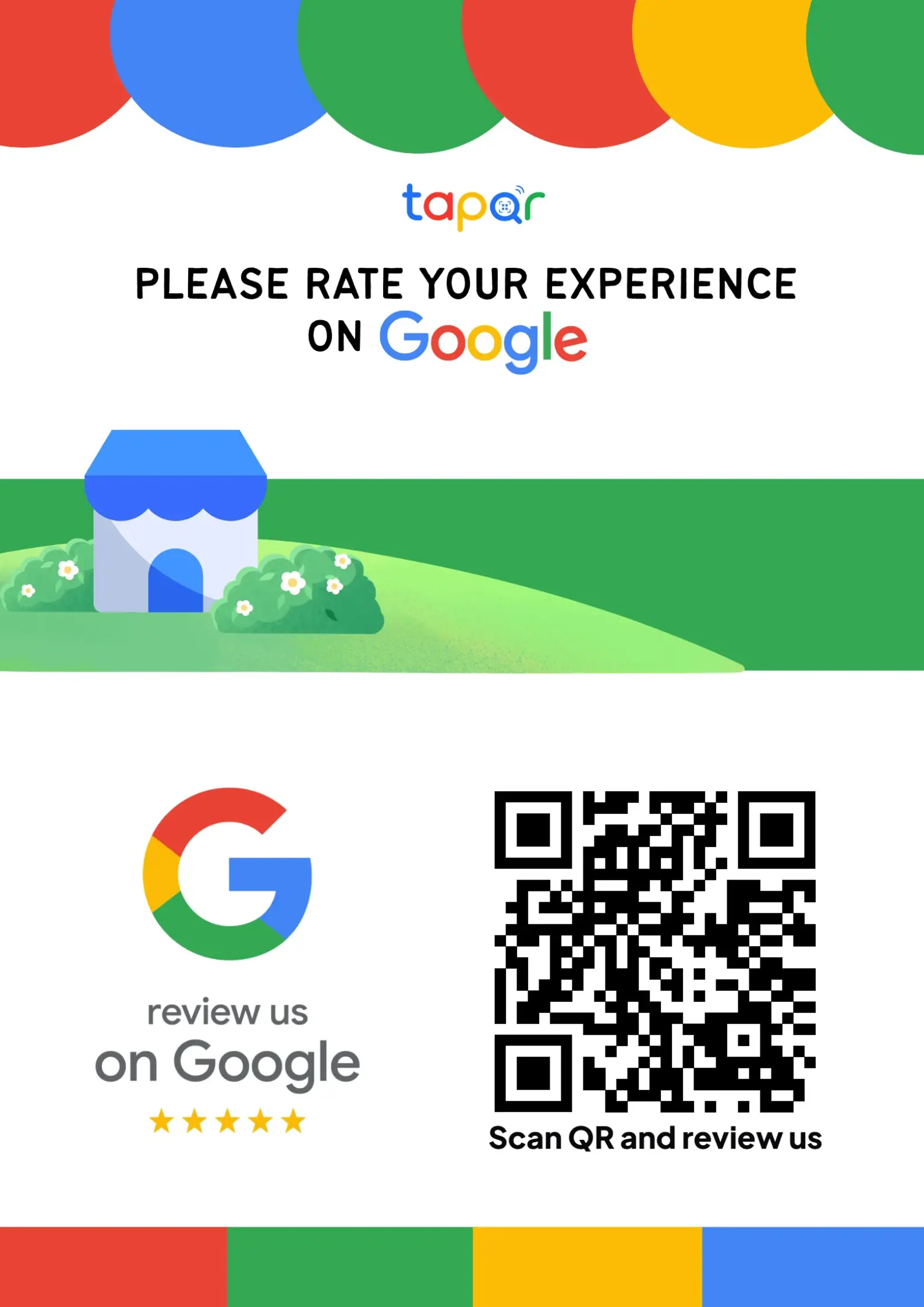
TapQR helps you use the same Google review solution on physical QR cards, posters, receipts and direct links so the customer sees a consistent review path.
- Create one review QR code for counter, card and poster placements.
- Use the direct review link in WhatsApp, SMS or email follow-ups.
- Retain a consistent customer journey across in-store and digital touchpoints.
A simple path from setup to customer review
Use TapQR as the access layer between your physical customer moment and your Google review destination.
-
01
List customer touchpoints
Write down where customers pay, wait, receive service and leave.
-
02
Pick two starter placements
Start with the highest-intent physical spot and one digital follow-up.
-
03
Print the right format
Use stands for counters, cards for tables and QR blocks for receipts or invoices.
-
04
Review after one week
Check whether customers notice the code and whether staff mention it naturally.
Benefits of thoughtful QR placement
Less awkward asking
Staff can point to a visible prompt instead of explaining every step.
More relevant timing
The request appears after the customer has something real to review.
Cleaner customer experience
Good placement avoids interrupting payment, service or movement.
Best places to put a Google Review QR Code
Use the places that fit your business journey.
- Billing counter or POS desk
- Restaurant table tent after the meal
- Reception or checkout desk
- Printed receipt, invoice or estimate
- Takeaway bag, box or product packaging
- Thank-you WhatsApp, SMS or email message
Placement mistakes to avoid
The wrong location can make a good QR code look invisible or confusing.
Do not place it only at the entrance
Customers entering the business are not ready to review yet.
Do not hide it behind counter items
Menus, bottles, bags and payment devices can cover flat cards.
Do not mix it with payment QR codes
If payment and review QR codes are near each other, label them clearly and separate the designs.
Do not ignore lighting
Glare, shadows and glass counters can make scanning harder.
Continue building a better review journey
Use these guides to connect the page topic with other TapQR review workflows.
Questions people ask about this topic
Short answers for business owners comparing review links, QR codes, cards and staff workflows.
Where is the best place to put a Google Review QR Code?
The best place is usually a natural pause point after service, such as billing, reception, table checkout, pickup, invoice or follow-up message.
Can I put the QR code on receipts?
Yes. Receipts and invoices can work well if the QR code is large enough and the wording is clear.
Should I place the review QR code at the entrance?
Entrance placement is usually too early. Customers are more ready to review after the experience.
Can I use multiple QR placements?
Yes. Use a few intentional placements rather than covering every surface.
How do I know if a placement is bad?
If customers cannot see it, cannot scan it comfortably or confuse it with another QR code, move or redesign the placement.
Place your review QR where customers can use it
TapQR helps you create the review QR code, then use it naturally across counters, cards, receipts, packaging and follow-ups.