
Home Service Review Workflow
Google Review QR Codes for Home Service Businesses
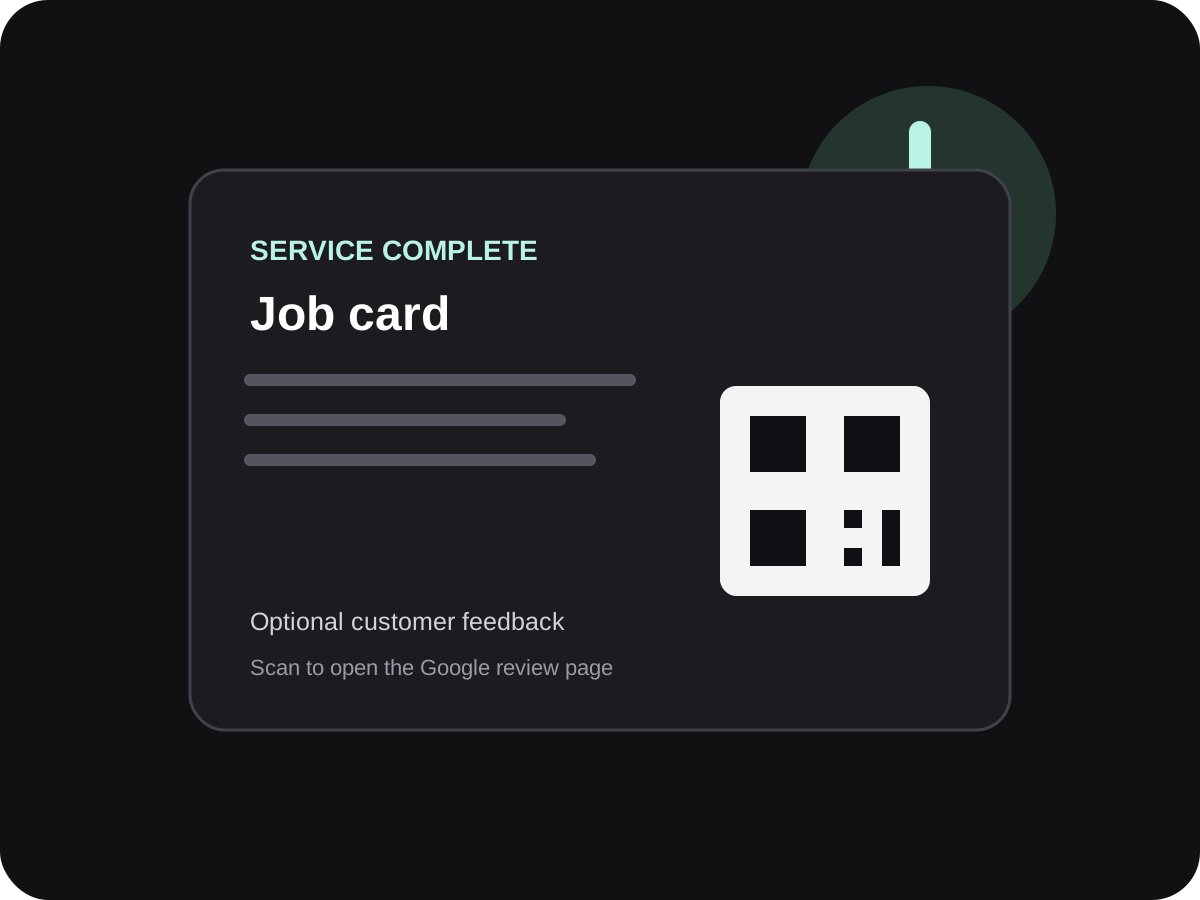
For a service team that travels to the customer, the review moment often comes at job completion. Put a clear review QR on the job card or invoice, then share the same direct link in a courteous follow-up.
- Useful after a completed visit
- QR for job cards and invoices
- Direct link for WhatsApp follow-ups
How should a home service business ask for a Google review?
Ask once after the work is complete, make it clear that feedback is optional, and give the customer a direct way to reach your Google review page. A QR on the job card is useful in person; a link can be sent by the office later.
Invite honest feedback from customers consistently. Do not ask only people who appear satisfied, request a particular star rating, or offer a reward for posting.
Why field teams miss the review opportunity
A repair or installation ends away from the business counter, and the team may move straight to the next appointment.
No fixed checkout desk
The interaction ends at a home, shop or office, so a counter stand cannot carry the request.
The moment is easy to forget
The technician closes the job and leaves; an office follow-up may be delayed or missed.
Customers must search manually
A vague request to find the business online adds effort after the service visit.
Build a review step into job completion
A repeatable routine keeps the request tied to the service record and helps different technicians use the same neutral wording.
Close the work first
Confirm the customer has had a chance to check the completed repair or installation before mentioning feedback.
Print the QR on the job card
Use a readable code beside a short label such as “Share your experience on Google”. Keep payment instructions separate.
Give the customer a choice
The customer can scan now or use the link later. Avoid standing over them while they decide.
Use one office follow-up
If your process includes a message, share the direct link once with a thank-you. Do not send repeated reminders.
QR on the job card or link in a follow-up?
Both can point to the same review destination; choose based on how the service visit ends.
| Touchpoint | Works well when | Practical setup |
|---|---|---|
| Job card QR | The technician is closing the visit in person | Print a clear code and optional short URL on the work-completion copy. |
| Invoice QR | The customer keeps a printed or digital bill | Place the QR near the thank-you note, not beside bank or payment codes. |
| Direct link | The office sends a service-completion message | Use the same verified branch link and keep the message optional. |
Simple ways staff can phrase the request
Use these as starting points, then let staff speak naturally.
At job completion
Thanks for choosing us. If you would like to share feedback about the visit, this code opens our Google review page.
Office follow-up
Hello [Name], thank you for booking [Business]. If you wish, you can share an honest review here: [link].
Technician handover
Here is your completed job card. The QR is optional if you would like to tell us about your experience.

A review destination for field-service touchpoints
TapQR helps a home service business prepare a Google review QR code and direct link for job cards, invoices, handover sheets and customer follow-ups.
- Use the QR where the technician closes the visit.
- Share the direct review link in a customer follow-up.
- Customers decide what to write and whether to post.
A simple path from setup to customer review
Use TapQR as the access layer between your physical customer moment and your Google review destination.
-
01
Choose the right profile
Confirm that the Google Business Profile link matches the service business or branch the customer used.
-
02
Prepare the QR and link
Create the review destination in TapQR, then test it from a printed copy and a phone message.
-
03
Add it to job paperwork
Place it on a completion card or invoice with a short, optional invitation.
-
04
Close and follow up respectfully
Finish the service conversation first; if appropriate, send one thank-you with the link.
What a consistent review touchpoint can improve
Fewer steps after a visit
The QR or direct link takes the customer to the intended review destination without a business-name search.
A repeatable field routine
The same prompt can be used across technicians, job cards and service areas.
A record customers can keep
An invoice or completion card can carry the link after the technician has left.
Where to put the review QR in a field-service journey
Choose a touchpoint the customer already receives; do not ask them to scan while the technician is still working.
- Job completion card handed to the customer
- Printed invoice or service receipt
- Care or maintenance instructions
- Service confirmation email or WhatsApp message
- Front-desk copy for a workshop with walk-in service
- A QR sticker on a customer copy of the warranty paperwork
Keep service reviews genuine and private
The request should describe the review destination, not prescribe the review content.
Ask for an honest account
Do not ask for five stars or tell customers to mention a particular technician, phrase or service keyword.
Do not reward the review
Avoid discounts, gifts, cashback or contests in exchange for posting, changing or removing a review.
Separate payment from feedback
Use a distinct design and label so a review QR is not mistaken for a UPI payment code.
Respect the customer’s home
Do not photograph the property or expose a customer’s address in follow-up material without permission.
Policy references: Google Business Profile Help: create a review link or QR code · Google Business Profile Help: tips to get more reviews
Continue building a better review journey
Use these guides to connect the page topic with other TapQR review workflows.
Questions people ask about this topic
Short answers for business owners comparing review links, QR codes, cards and staff workflows.
Where should a home service business put its review QR code?
A job-completion card, customer invoice or care-instruction sheet can carry the QR. Choose a document the customer receives after the work is complete.
Can a technician ask a customer for a Google review?
A technician can make a brief, optional invitation after completing the work. The customer should not feel watched or pressured to post.
Should the office also send a review link?
A single polite follow-up link can help a customer who prefers to respond later. Avoid repeated requests.
Can I offer a discount for a review?
No. Google prohibits incentives offered in exchange for reviews, review changes or review removal.
Does TapQR automatically publish a customer review?
No. TapQR provides a QR or link to the review journey; customers write and submit their own feedback.
Give customers a clear way to review a completed service
Prepare a review QR code and direct link for the job card, invoice or follow-up that fits your team’s workflow.