Cloud Kitchen Review Journey
Google Review QR Codes for Cloud Kitchens
A cloud kitchen may not have a dining room or counter where guests linger. A clearly labelled review QR can fit on direct-order packaging or a pickup note, while marketplace feedback should stay on the platform that handled the order.
- For direct orders and pickup
- Packaging-friendly QR placement
- Keep each platform’s feedback route clear
Where should a cloud kitchen put a Google review QR?
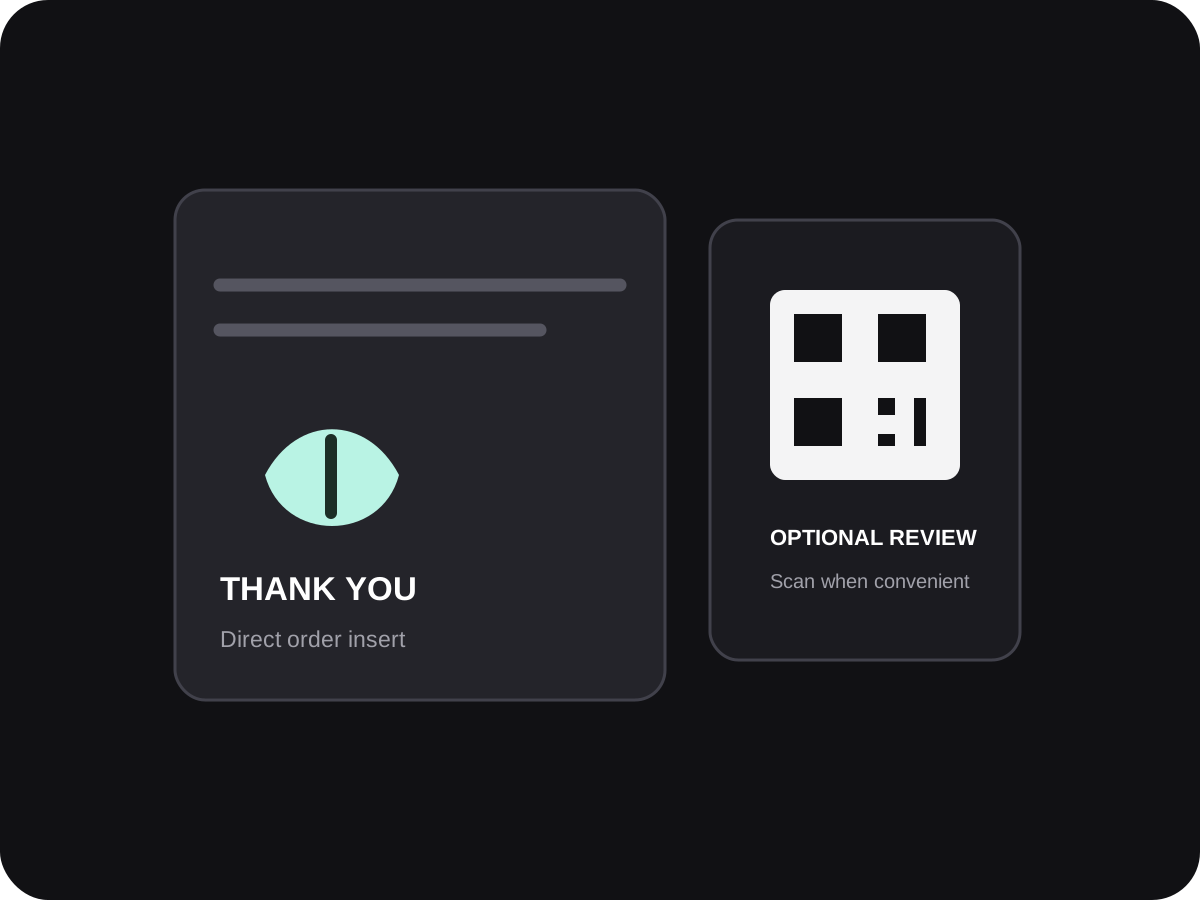
For customers who ordered directly from the business, place a labelled review QR on a thank-you card, takeaway bag or pickup receipt. Test that it opens the correct Google Business Profile.
If an order came through a delivery marketplace, follow that platform’s feedback rules and do not redirect or pressure the customer to move a platform review elsewhere. A Google QR is most appropriate for a genuine customer interaction with the business.
Cloud kitchens have fewer face-to-face moments
Packaging may be the only physical material that reaches a customer, and orders can come from several channels.
No dining-room display
A cloud kitchen cannot rely on table cards or a host stand to show the review destination.
Order channels differ
Direct orders, pickup and third-party marketplace orders may have separate terms and feedback tools.
The packaging is crowded
A code can be missed if placed among reheating, allergen, food-safety and delivery information.
Plan a packaging-based review prompt
Use a small, legible message that arrives after the food, without distracting from essential packaging information.
Choose eligible order moments
Use the Google review QR with direct business orders or pickup interactions where the destination is relevant.
Use a separate insert
A thank-you card can keep the QR distinct from ingredient, allergen, storage and delivery notes.
Check the brand and branch
If you operate several kitchen brands or locations, test the listing the customer should review.
Keep the request optional
Do not promise a coupon, free item or discount in exchange for a Google review.
Match the request to the order channel
A customer should be asked for feedback in a place that fits the way they bought and received the food.
| Order type | Suitable touchpoint | Check first |
|---|---|---|
| Direct online order | Thank-you insert or post-order message | Use the correct Google profile and keep the request voluntary. |
| Customer pickup | Pickup handover card or bag | Do not delay handover or insist on a scan. |
| Marketplace delivery | The marketplace’s own feedback flow | Read that platform’s rules before adding off-platform requests to its packaging. |
Simple ways staff can phrase the request
Use these as starting points, then let staff speak naturally.
Direct-order thank-you card
Thanks for ordering from [Kitchen]. If you would like, share your experience on Google using this QR.
Pickup handover
Your order is ready. The card has an optional link to our Google page if you would like to tell us about the experience.
Direct-order follow-up
Thank you for ordering from [Business]. If you wish, share honest feedback here: [link].
A direct review link for takeaway touchpoints
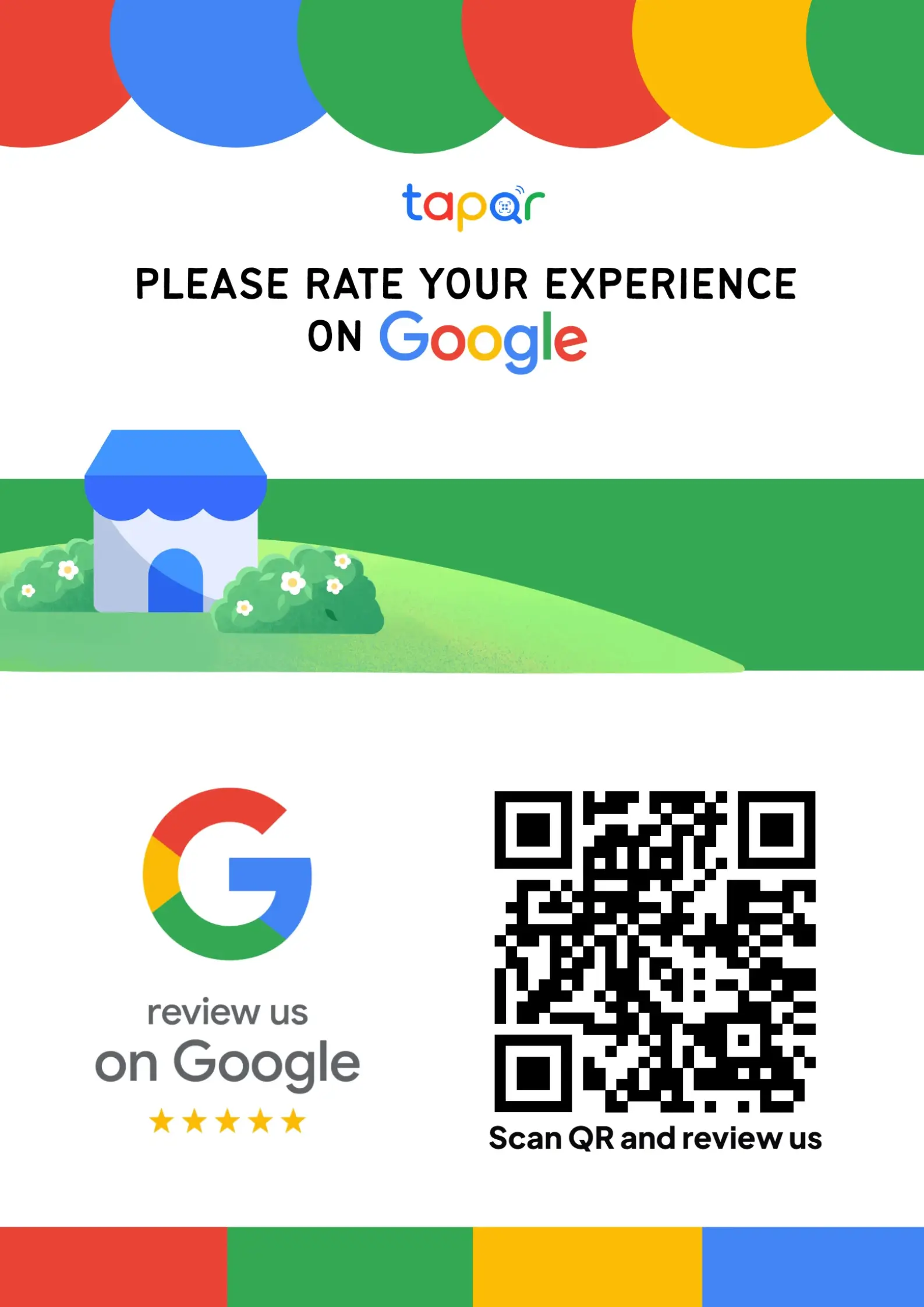
TapQR helps cloud kitchens prepare a Google review QR code and direct link for packaging inserts, pickup material or direct-order follow-ups.
- Create a QR for a specific business or location profile.
- Use the same destination on a printed insert and a direct message.
- Customers decide whether to post feedback on Google.
A simple path from setup to customer review
Use TapQR as the access layer between your physical customer moment and your Google review destination.
-
01
Confirm your Google profile
Select the listing that accurately represents the kitchen brand and location.
-
02
Create and test the review QR
Scan the code and check that the correct business opens on a phone.
-
03
Place it on a separate insert
Keep the review prompt readable and separate from food-safety information.
-
04
Use it in the right channel
For marketplace orders, follow platform terms; for direct orders, make the invitation optional.
Why a QR suits a delivery-first business
No storefront required
A printed insert can carry the review destination to a customer who never visits the kitchen.
Fewer steps to find the listing
A scan can avoid an extra search for the brand or branch name.
Fits direct-order materials
A card or thank-you note is easy to include in the business’s own order flow.
Places to share a cloud kitchen review link
Choose an owned customer touchpoint and keep delivery-platform rules in mind.
- Thank-you card in a direct takeaway order
- Pickup counter handover note
- Direct-order receipt or invoice
- Business website order confirmation
- A direct post-order email or opted-in message
- Customer service page for follow-up feedback
Avoid confusing customers or breaching platform trust
The request should be transparent about where feedback goes and should never exchange value for a review.
Keep marketplace feedback on-platform
Do not use packaging to evade or contradict the terms of the platform that sourced the order.
Do not incentivise a review
Do not offer free food, discounts, loyalty points or a giveaway entry for a Google review.
Keep the code away from critical notices
Allergen, storage and food-safety information should remain easy to find.
Ask for honest feedback
Do not request a five-star rating or filter the request based on whether the order seemed successful.
Policy references: Google Business Profile Help: create a review link or QR code · Google Business Profile Help: tips to get more reviews
Continue building a better review journey
Use these guides to connect the page topic with other TapQR review workflows.
Questions people ask about this topic
Short answers for business owners comparing review links, QR codes, cards and staff workflows.
Can a cloud kitchen use a Google review QR code?
Yes, for an appropriate customer interaction with the business. It can appear on direct-order packaging, a pickup note or a direct post-order message.
Should a marketplace order include a Google review request?
Follow the delivery platform’s current terms and customer-feedback process. Do not use the QR to divert or pressure customers in a way that conflicts with those terms.
Does a review QR replace delivery-app reviews?
No. A Google QR opens a Google review destination; marketplace reviews belong to the marketplace’s own feedback system.
Can I offer a free dessert for a Google review?
No. Google prohibits incentives in exchange for posting, changing or removing reviews.
Where should I put the QR on takeaway packaging?
A separate thank-you insert is often clearer than placing it among food-safety, allergen or storage details.
Give direct-order customers a clear feedback option
Prepare a tested QR and link for your own customer touchpoints, while keeping marketplace feedback flows distinct.