Free Google Review Card Generator: Printable & Rechargeable
Don’t spend ₹999+ waiting days for plastic hardware. Generate a print-ready, high-resolution Google Review QR Card in 30 seconds. Print for your acrylic stands, counter desks, or tables—and update your review destination anytime with smart rechargeable technology.
Takes < 30 seconds • No credit card required • Instant download
- ₹0 Cost Forever (No card, no subscription)
- Rechargeable QR Link (Update link without reprinting)
- Instant PDF/PNG Export (Ready for A6, A5, stands)
- 100% Smartphone Compatible (Native camera scan)
What Is a Google Review Card?
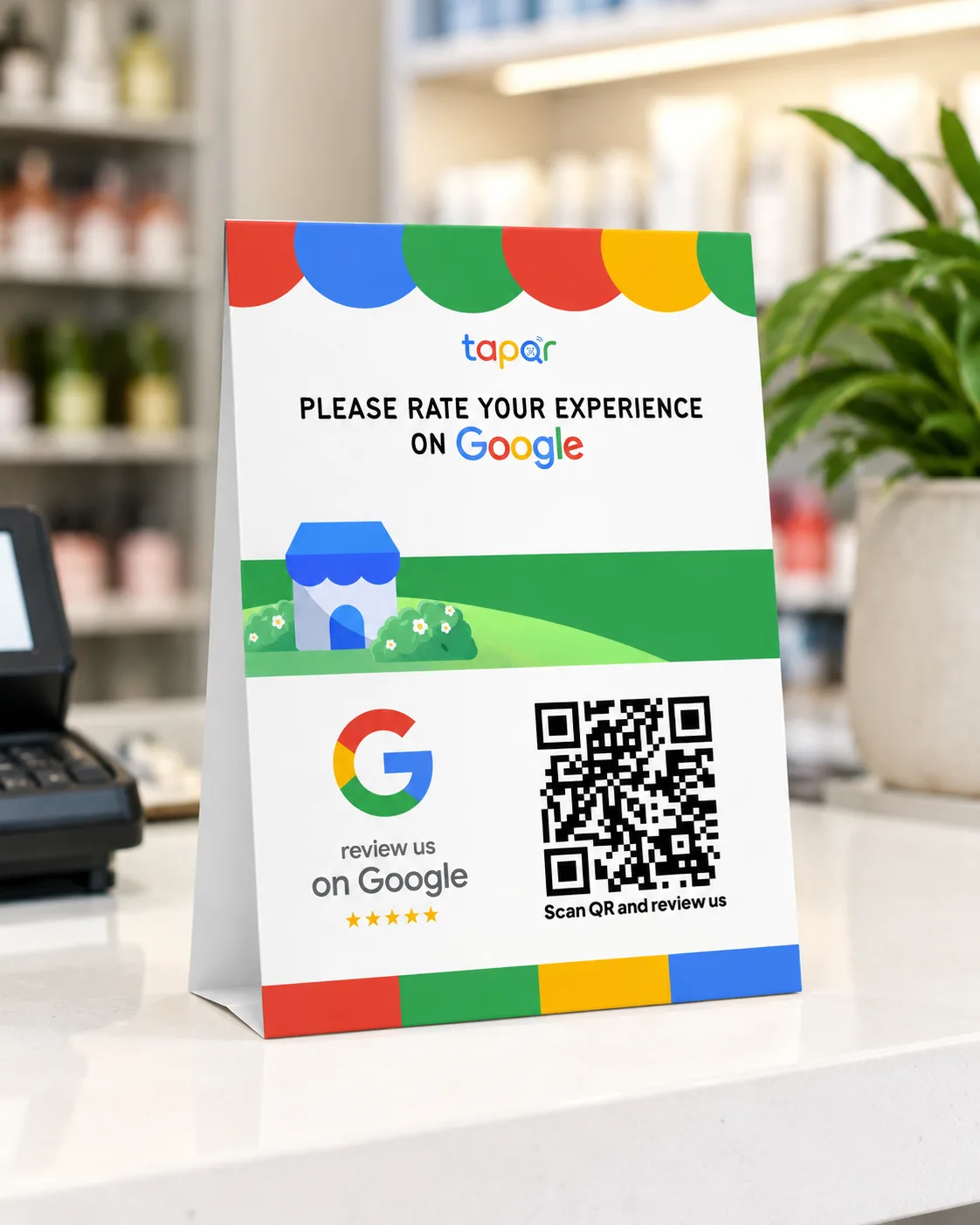
A Google Review Card is a physical display card or handout featuring a scannable QR code that directs customers straight to your official Google review page. Instead of searching for your business name online, customers simply scan the card with any smartphone camera to rate your business and leave feedback in seconds.
A scan connects customers straight to your Google Business Profile review dialog. It does not automatically submit ratings or require any proprietary app; customers retain full control over their rating, comments, and photos. Businesses use Google Review Cards on checkout counters, restaurant tables, salon mirrors, and delivery bags to turn customer satisfaction into verified public reviews.
How Does a Google Review Card Work?
The business creates the card once. Customers review effortlessly from their personal smartphones in seconds.
- Connect Review LinkEnter your verified Google Business Profile review destination URL into TapQR.
- Generate Clean QR CodeTapQR generates a high-contrast, camera-optimized QR code with built-in quiet zones.
- Print & Display CardPrint the artwork on cardstock, slip it into an acrylic stand, or use it on takeaway inserts.
- Customer Points CameraThe customer opens their native iPhone or Android camera app and focuses on the code.
- Review Screen OpensThe camera displays a direct link banner that opens your Google review window immediately.
- Customer Submits ReviewThe customer selects their star rating, writes honest feedback, and posts directly to Google.
No app download or Bluetooth pairing is needed. Customers only require an internet connection and their standard Google account to publish their review.
How to Create a Free Printable Google Review Card
Follow this simple 4-step process to generate, print, and display your custom QR review card in under 30 seconds.
-
1. Enter Your Google Review Link
Paste your official Google Business Profile review link or search your business name to fetch your direct review URL so customers bypass manual search.
-
2. Generate Your Dynamic Rechargeable QR Card
TapQR automatically creates a high-contrast dynamic QR card that can be updated anytime from your dashboard without changing the printed code.
-
3. Download Print-Ready PDF & PNG
Download your high-resolution vector PDF or PNG formatted for standard acrylic tabletop stands (A6, A5, 4x6") or customer bill folders.
-
4. Print & Display on Counter or Table
Print on your office printer or cardstock, place it in an acrylic stand on your checkout counter, and start collecting verified Google reviews immediately.
Why Digital Rechargeable QR > Expensive Hardware Cards
Why modern businesses choose TapQR rechargeable printable cards over overpriced plastic NFC chips.
The Hidden Trap of Physical NFC Cards
Most card sellers charge ₹999 to ₹1,999 for pre-programmed plastic NFC cards. But if your Google Place ID refreshes, your address changes, or your review link breaks, that physical card becomes useless plastic waste. TapQR solves this with Smart Rechargeable Dynamic QR Cards: print once for pennies, and if your review link ever changes, simply update the destination link from your dashboard—without discarding stands or reprinting.
| Feature | TapQR Dynamic QR Card | Traditional Plastic / NFC Cards |
|---|---|---|
| Upfront Cost | ₹0 (100% Free Forever) — generate and download unlimited printable cards. | ₹499 – ₹1,999 per card + mandatory postal shipping fees. |
| Link Flexibility ("Rechargeable") | 1-Click Remote Update: If your Google Review URL changes, update it in your dashboard without touching or reprinting stands. | Hardcoded & Bricked: If your review link breaks or Google changes your Place ID, the card is permanently useless. |
| Setup & Delivery Time | Instant: Download high-resolution print-ready PDF and PNG in under 30 seconds. | 5 to 7 business days waiting for physical manufacturing and delivery. |
| Multi-Location Scalability | Print 50+ copies for dining tables, checkout counters, and takeaway bags for pennies. | Scaling to 20 tables costs ₹15,000+ in hardware card orders. |
| Device Compatibility | 100% Universal: Works instantly on every iPhone and Android camera without any app. | Inconsistent: Requires NFC hardware; blocked by thick phone cases and budget phones. |
| Display Versatility | A6/A5 acrylic counter stands, table tents, cashier stickers, receipt footers, and bill folders. | Rigid plastic credit card size or glued plastic puck only. |
| Maintenance & Durability | Zero electronic chips to fail. Easily reprinted on demand if damaged or soiled. | Physical microchip can fail if bent, exposed to moisture, or demagnetized. |
Ready to deploy review cards without hardware fees? Generate your print-ready card in 30 seconds.
Generate Free Review Card →Why businesses favor QR review cards: QR codes require zero hardware microchips, can be printed on dozens of tables or packaging bags for pennies, and work reliably on 100% of camera smartphones. For an in-depth technical analysis, read our complete guide on QR Code vs NFC for Google Reviews.
Benefits of a Google Review Card for Your Business
Turn in-person visits into a steady stream of verified Google reviews that build local search rankings and customer trust.
Turn Customer Visits Into Google Reviews
Capture customer enthusiasm when satisfaction is highest—right after a great meal, haircut, treatment, or purchase—rather than hoping they remember after going home.
One Scan. Straight to Your Review Page
Removes all searching friction. Customers don't have to type your business name, filter through competing listings, or navigate multi-page menus.
No App Required – Any Smartphone
Native iPhone and Android camera apps recognize the QR code automatically. Customers simply point their camera and tap the link notification to review.
Create Your Review Card in Minutes
Generate, customize, and print your review card today without graphic design experience or expensive hardware orders. Start collecting feedback immediately.
100% Google Review Policy Compliant
All reviews are voluntary and transparent. Zero review gating or artificial filtering, keeping your Google Business Profile completely safe from policy penalties.
Cost-Effective & Scalable Everywhere
Deploy across multiple counters, branches, dining tables, or takeout bags without paying recurring per-card microchip fees or proprietary hardware costs.
Where Can You Use a Google Review Card?
Strategic placement is the single biggest factor in review collection. Position cards where customers pause with their smartphones ready.
Reception desk
Position an upright acrylic stand facing visitors during check-in or appointment wrap-up. Clear of staff screens and paperwork.
Checkout counter
Customers naturally pause while payment processes. Place the review card next to the receipt printer or card reader.
Restaurant & cafe tables
A compact tabletop card invites feedback after the meal without interrupting conversation. Keep clear of condiments.
Billing counter & cash desk
Provides a logical next step after the transaction completes, allowing customers to scan before stepping away.
Takeaway & delivery packaging
A printed card insert placed inside delivery bags lets customers review from the comfort of home after enjoying their order.
Waiting & lounge areas
Waiting clients or companions have dedicated downtime to share their positive experiences on Google.
Hotel front desk
Capture guest sentiment during check-out while their stay experience is completely fresh and top-of-mind.
Service & repair desks
Pair the review card with completed-job paperwork or keys during vehicle, tech, or equipment handover.
Google Review Card for Different Businesses
Every industry has a distinct customer journey. Explore tailored review card recommendations and dedicated guides for your business type:
Google Review Card for Restaurants
Place compact tent cards on dining tables, slip cards into bill folders after the meal, or include inserts in delivery bags. Also explore QR solutions for cafes and coffee shops.
Google Review Card for Salons & Spas
Hand over a branded card at the reception desk alongside aftercare advice while clients admire their finished look. See dedicated tips for spas and wellness centers.
Google Review Card for Clinics & Healthcare
Use a discreet reception card with neutral wording. Never ask patients for medical specifics or diagnoses. See specialized guidance for dental clinics.
Google Review Card for Hotels & Stays
Position cards at the concierge or checkout desk, print QR codes on keycard sleeves, or place tent cards on room writing desks to capture completed stay impressions.
Google Review Card for Retail Stores
Place an eye-level card beside the cash register or drop a lightweight review card directly into shopping bags with the receipt so buyers can review at home.
Google Review Card for Gyms & Fitness Centers
Display review cards at member check-in desks, trainer handover stations, or smoothie bars after members finish an energizing workout.
Google Review Cards for Indian Businesses
Local businesses in India feature unique retail and billing touchpoints such as UPI payment counters, printed GST bills, and WhatsApp communication.
Separate UPI & Review QR Codes
Avoid placing review QR stickers directly on or touching your UPI soundbox or payment QR stand (PhonePe, Paytm, GPay). Keep them visually distinct with clear signage so customers don't accidentally try to pay through your review link.
Bilingual Card Signage
Using simple English alongside Hindi or your regional language (e.g., "कृपया Google पर अपनी राय दें / Please rate us on Google") significantly increases customer comfort and review submission rates across all demographics.
Looking for India-specific placement strategies, local business examples, and billing integration? Explore our dedicated Google Review Card India guide.
Google Review Card Display Styles & Examples
Choose the card format that best matches your counter space, interior decor, and customer interaction flow.
Counter Stand Card
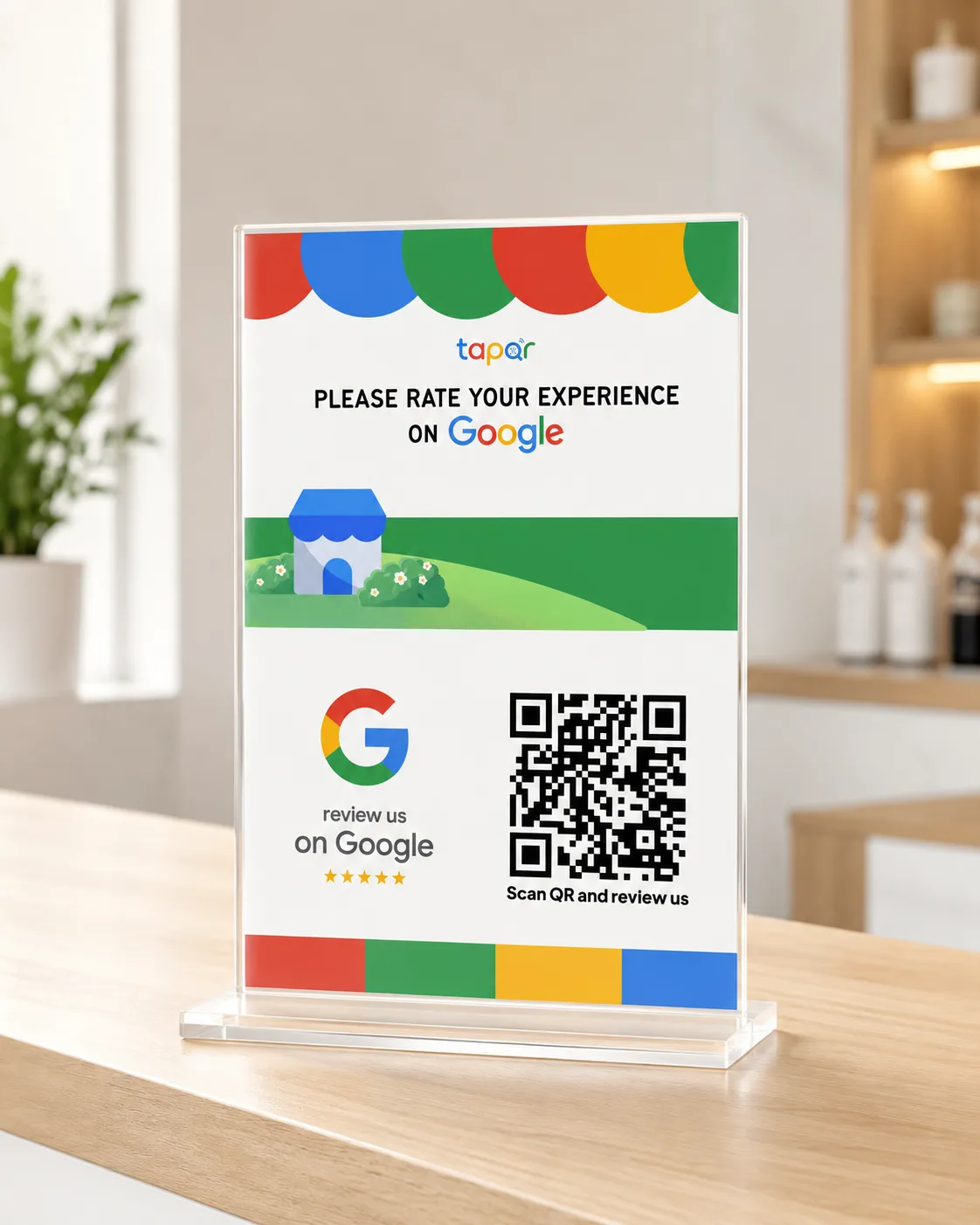
Suggested wording Thanks for visiting us today.
Scan with your phone to leave a quick Google review.
Place this counter card at checkout or reception facing customers as they complete their transaction.
Wall-Mounted Poster Card
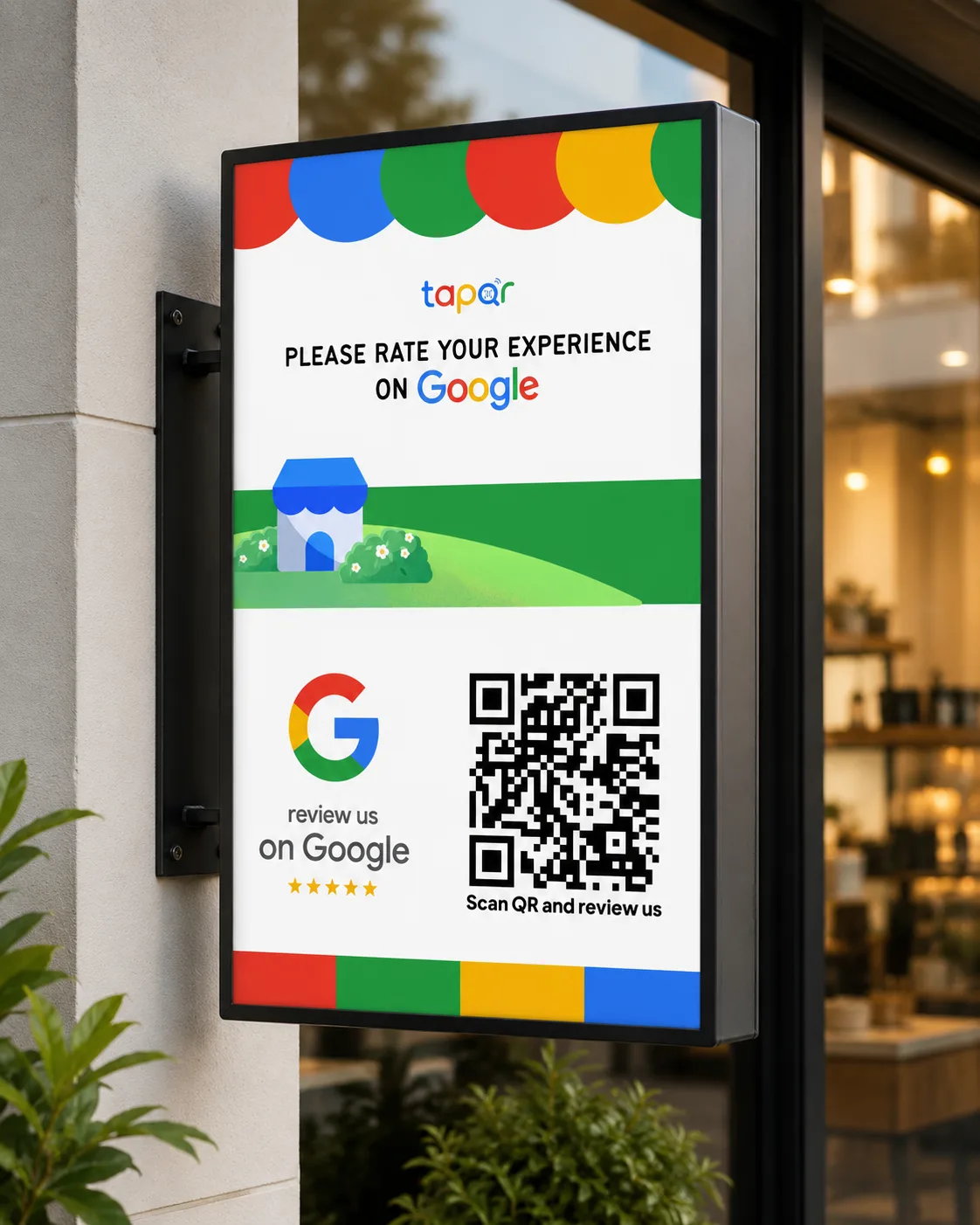
Suggested wording How was your experience?
Scan the QR code to share honest feedback on Google.
Mount at eye level near the main exit where customers pause before leaving.
Door & Window Card
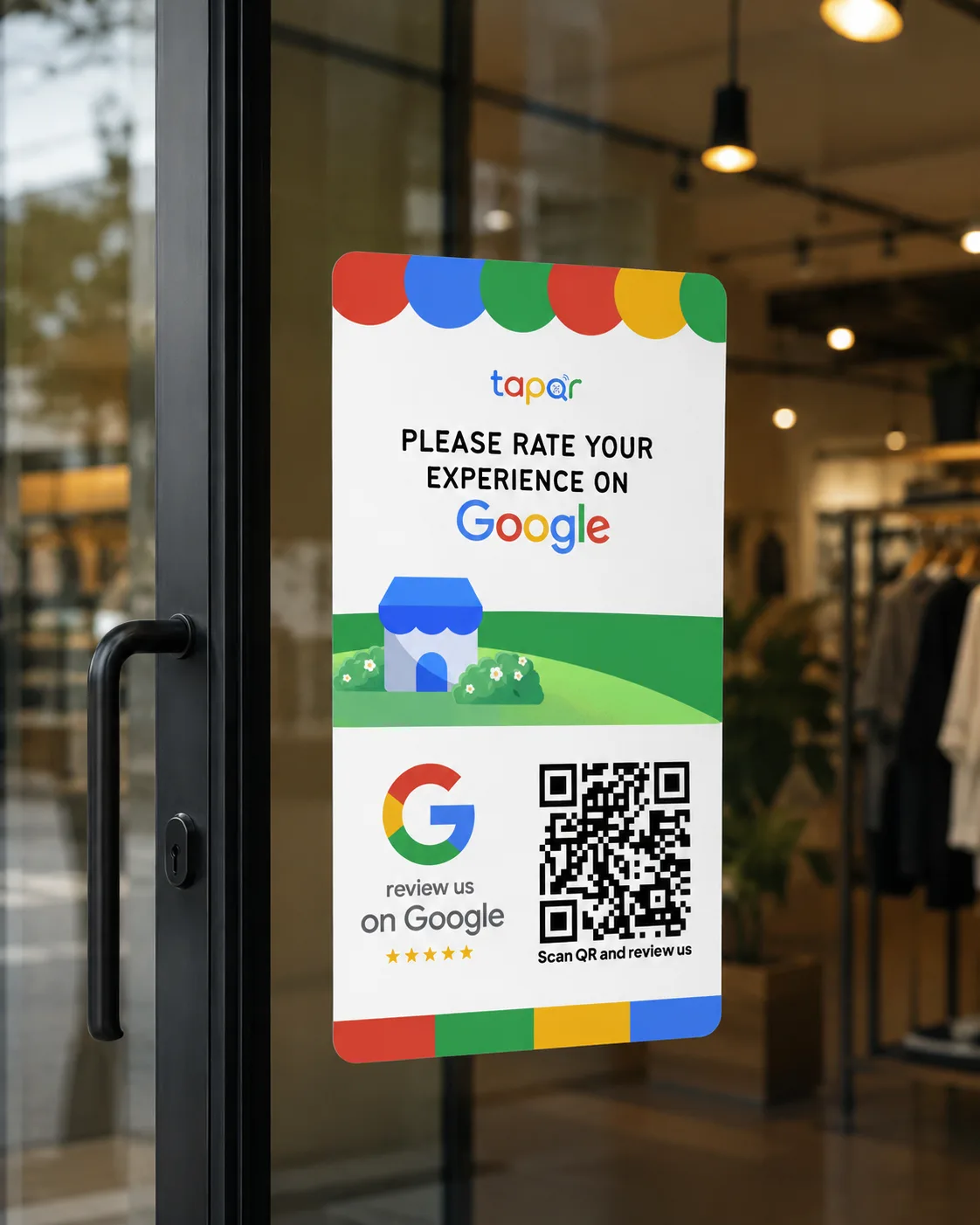
Suggested wording Your feedback helps us grow.
Scan to rate your visit on Google.
Gives customers a visible reminder as they depart. Position at comfortable scanning height.
Tabletop Stand Card
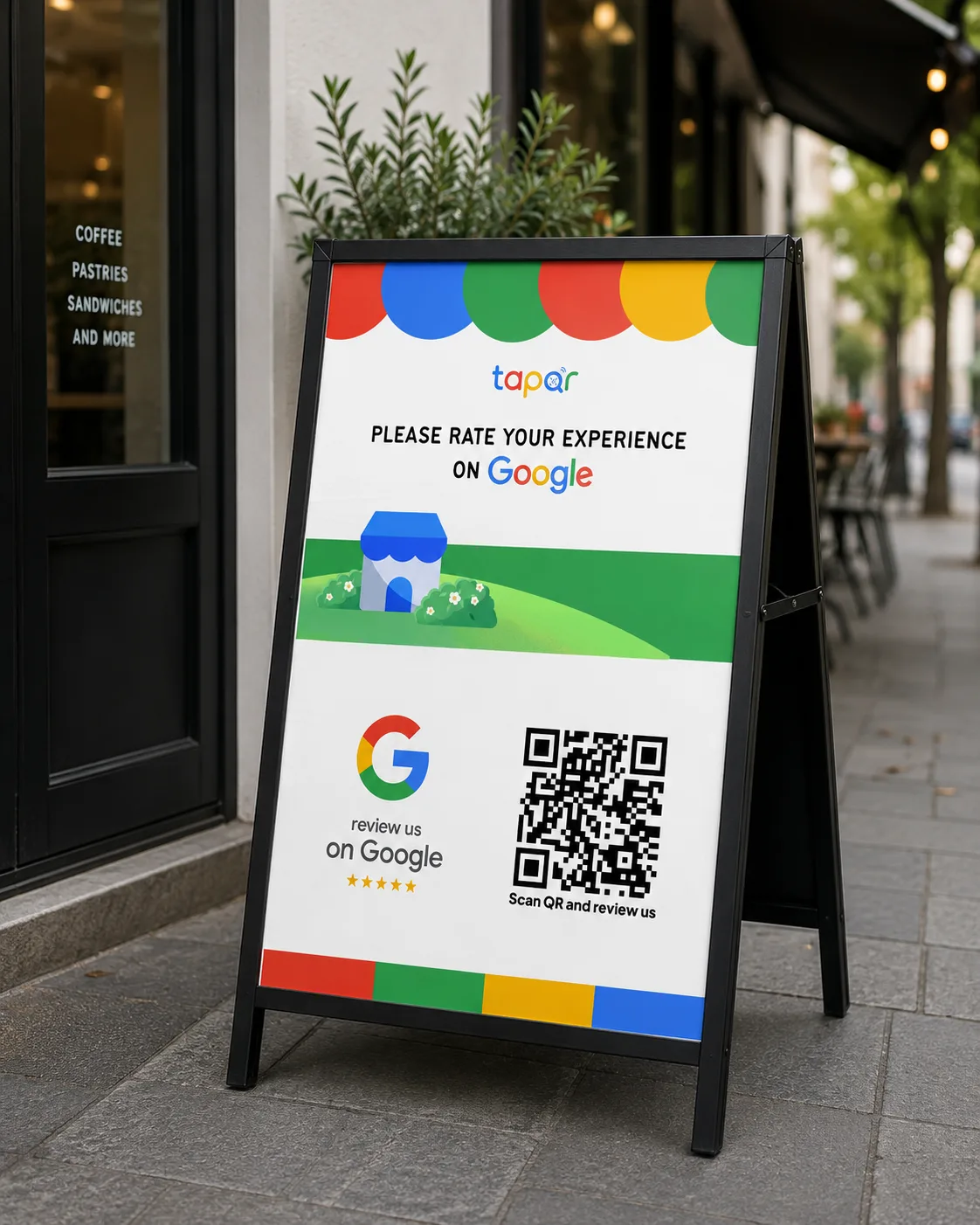
Suggested wording Thank you for dining with us.
Scan to review us on Google.
Ideal for cafe and restaurant tables, waiting lounges, and consultation desks.
What Should You Put on a Google Review Card?
A clean, professional review card answers three basic questions within two seconds: whose business is this, what is requested, and where do I scan?
- Business name & logo: Use the exact trading name customers recognize from your storefront or reception.
- Polite, neutral review invitation: Invite genuine feedback without nudging for a specific rating (e.g., "How was your visit today?").
- High-contrast QR code: Keep modules crisp black on a pure white background with a generous quiet zone around all edges.
- Action-oriented call-to-action: "Scan with your phone camera to leave a review on Google" removes confusion about the action.
- Google brand reference: A clean text mention or standard star graphic clarifies where the review will be published. Follow Google's brand guidance without implying official endorsement.
- Generous whitespace: Separate text from the QR code. Avoid cramming social media links, discount codes, or Wi-Fi passwords onto the review card.
Simple Google Review Card Layout Template
[Your Business Name]
Tell us about your experience with us today.
[Your Scannable Google Review QR Code]
Scan with your smartphone camera to review us on Google.
Keep the background clean and avoid glossy plastic laminates that reflect indoor lighting into camera lenses. For digital cards, include a clickable review link alongside the QR image.
Learn how to create direct links in our guide on the Google review link and review our complete Google review QR code generator workflow.
Google Review Card Size and Printing Tips
A review card must scan effortlessly across diverse smartphone cameras. Follow these print and sizing specifications for best results:
- Standard card dimensions: For counter stands, A6 (105 × 148 mm) or A5 (148 × 210 mm) provides ideal readability. For customer handouts and bag drops, standard business card size (85 × 55 mm or 3.5 × 2 in) works well.
- Minimum QR code print size: Keep the QR code at least 30 × 30 mm (1.2 × 1.2 in) on handheld cards, and at least 40 × 40 mm (1.6 × 1.6 in) on counter stands.
- Preserve the quiet zone: Maintain a clear white margin equal to at least 4 modules (squares) around the code. Clipping the quiet zone causes phone cameras to miss the pattern.
- Choose a matte or satin finish: High-gloss laminates cause severe light glare from overhead shop lights, preventing phone cameras from focusing. Matte finishes ensure clean scans.
- Use vector or high-DPI raster assets: Download the original high-resolution artwork from TapQR. Never enlarge a low-resolution screenshot or compressed chat image.
- Test proofs on multiple devices: Scan a physical test print from 30 cm away using both an iPhone and an Android phone before producing bulk prints.
- Keep clear of folds and cuts: Place the QR code comfortably inside the trim line and away from card creases or acrylic stand clips.
- Inspect regularly: Sun-faded prints, spilled liquids, or scratched plastic holders degrade scan speeds. Replace cards every 6–12 months as needed.
Common Google Review Card Mistakes to Avoid
Avoid these common pitfalls that reduce customer scans and lower review completion rates:
- QR code too small: Printing a tiny code forces customers to hold their phone awkwardly close, causing focus failures.
- Poor contrast: Light grey or pastel QR codes on colored backgrounds reduce camera recognition speed. Use dark modules on white.
- Wrong review destination: Always link directly to your official Google review dialog, not a general Google Search results page or a competitor's branch.
- Competing QR codes: Placing review QRs directly next to Wi-Fi, menu, or payment codes creates scanning errors and customer confusion.
- Aggressive or scripted demands: Train staff to mention the card casually after positive moments, never aggressively demanding reviews before service is rendered.
- Overcrowded card design: Cramming social media icons, loyalty offers, and paragraphs of text distracts from the primary review call-to-action.
- Lack of scan testing: Failing to test a printed card under real shop lighting conditions leads to unnoticed scanning failures.
- Neglecting customer privacy: In sensitive healthcare or financial environments, keep cards discreet and remind clients that reviews are public.
Google Review Policy & Best Practices
Collecting reviews through physical cards is fully supported by Google, provided you adhere to core policy guidelines:
- No review gating: Google strictly prohibits filtering customers by screening for positive feedback before sending them to review. All customers must receive open, equal access to review.
- Never offer incentives: Offering discounts, free items, gift cards, or contest entries in exchange for Google reviews violates Google's prohibited content policy and risks listing suspension.
- Do not demand 5 stars: Ask for honest, constructive feedback. Let your customers decide what rating accurately describes their experience.
- Train staff on natural timing: Ask when the customer is most satisfied—after a compliment or at checkout. Learn more in our guide on how to ask customers for Google reviews.
- Build a repeatable workflow: Pair your review cards with ongoing customer service improvements. Explore our complete guide on how to get more Google reviews.
- Manage feedback professionally: Respond promptly and professionally to all reviews. Read our framework on Google review management.
Frequently Asked Questions
Practical answers to common questions about designing, printing, and using Google Review Cards for business.
Is this Google Review Card generator really 100% free?
Yes, TapQR is 100% free with ₹0 hidden fees. You can design, customize, and download unlimited high-resolution printable Google Review Cards in PDF or PNG format without requiring a credit card or buying expensive hardware.
What is a rechargeable dynamic review QR card?
A rechargeable dynamic QR card allows you to change or update your destination Google review link anytime from your online dashboard without reprinting your cards. If your Google review link ever changes, you rebrand, or you switch locations, your printed acrylic stands continue working seamlessly.
How do I print and display my Google Review Card?
After downloading your high-res PDF or PNG from TapQR, print it on standard cardstock using any home or office printer, or send it to a local print shop. Slide the printout into a standard acrylic display stand (A6, A5, or 4x6 inch) and place it on your checkout counter, dining table, or reception desk.
Do customers need an app or NFC to scan this card?
No. Customers do not need an app, NFC reader, or special setup. They simply open their standard iPhone or Android camera, point it at the QR code, and tap the notification link to open your official Google review dialog in under 5 seconds.
What is a Google Review Card?
A Google Review Card is a display card or handout featuring a scannable QR code that directs customers straight to your official Google review dialog. Instead of searching for your business name on Google, customers simply scan the card with any smartphone camera to rate your business and leave feedback in seconds.
How do I create a Google Review Card?
Creating a card with TapQR takes under 30 seconds: 1) Paste your official Google review link, 2) Customize your high-contrast dynamic QR Review Card, 3) Download your print-ready vector PDF or PNG template, and 4) Print and display the card at your counter or tables.
Can I put a QR code on a Google Review Card?
Yes, absolutely. A high-contrast QR code is the most reliable and universally compatible element on a review card. It allows any customer with an iPhone or Android smartphone camera to open your Google review screen instantly without needing special equipment or apps.
Do Google Review Cards work on iPhone and Android?
Yes. Both iOS (iPhone Camera app) and Android (Google Lens / native camera app) have built-in QR scanners that read Google Review Cards instantly. No separate app download is needed. The customer just points their camera and taps the on-screen link.
Can I use a Google Review Card for my business?
Yes. Any verified Google Business Profile can use a Google Review Card. They are highly effective for retail shops, restaurants, cafes, salons, dental and medical clinics, hotels, auto repair shops, gyms, and professional services where customers interact in person.
Where should I place my Google Review Card?
Place your card at natural pause points where customers have finished their service or transaction: checkout counters, reception desks, restaurant dining tables, bill presentation folders, service collection counters, or inside takeaway shopping bags.
Is a Google Review Card the same as an NFC card?
No. Traditional NFC cards require physical microchips embedded in plastic that cost ₹999+ each and often fail through phone cases. TapQR gives you a digital, printable QR card that works on 100% of smartphones and can be reprinted or updated anytime.
How do I find my official Google review link?
Log into the Google account managing your Google Business Profile, search for your business on Google Search or Maps, click "Ask for reviews" (or "Get more reviews"), and copy the direct short URL (e.g., https://g.page/r/.../review). Paste this link into TapQR to generate your card.
Generate Your Free Google Review Card in 30 Seconds
Don't waste money on rigid plastic cards or wait for shipping. Generate your smart, rechargeable QR review card with TapQR, download the print-ready PDF for ₹0, and display it at your counter today.
100% Free • No credit card required • Instant high-resolution vector PDF