
Retail QR Guide
Google Review QR Code for Retail Stores, Shops and Boutiques
Retail stores should use review QR codes at the end of the purchase journey: checkout counters, receipts, carry bags, pickup desks, product inserts, warranty cards and after-sales WhatsApp messages.
- Checkout counter QR cards
- Receipt and bag inserts
- Useful after purchase or pickup
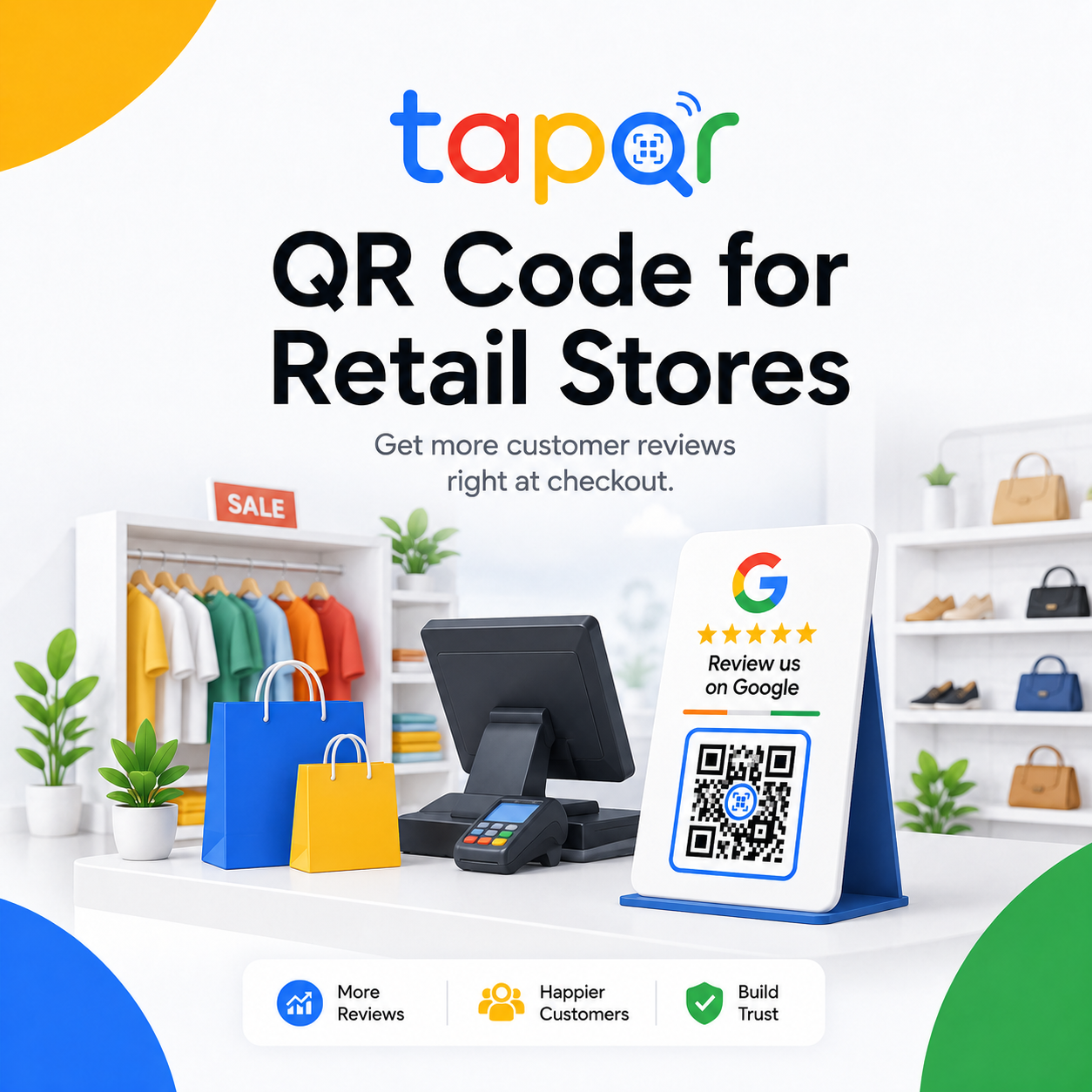
Retail review QR codes should sit near purchase completion.
A shop customer is most ready to leave feedback after billing, fitting, product demo, delivery pickup or issue resolution. The QR code should appear there, not only at the entrance.
Use cards for counters, QR blocks for receipts and small inserts for bags or product boxes so the request fits the retail flow.
Why retail stores miss review moments
Retail feedback moments are quick and often happen while staff are packing, billing or answering the next customer.
Checkout queues move fast
Staff may avoid asking when other customers are waiting.
Purchases continue after the store
Some customers judge the experience after using the product at home.
Returns need care
A review request after a return or exchange should only happen if the service recovery ended well.
Retail QR placement plan
Use different placements for walk-in purchases, pickups and after-sales support.
Counter card at billing
Place the QR card where the customer can see it while payment or packing is happening.
Receipt QR for every purchase
Use a simple line on printed or digital invoices so customers can review later.
Bag insert for product use
Include a small review card when the customer may need time to try the product.
Pickup desk prompt
Use a QR card where online or phone orders are collected.
Simple ways staff can phrase the request
Use these as starting points, then let staff speak naturally.
Checkout
Thank you for shopping with us. This QR opens our Google review page if you would like to share feedback.
Pickup desk
Your order is ready. There is a review QR here if you want to share your pickup experience.
After-sales support
I am glad we could sort that out. You can use this link if you would like to leave honest feedback.

TapQR for retail stores
TapQR helps retail stores create a review QR code and direct review link that can be used on counters, receipts, carry bags, product inserts and WhatsApp follow-ups.
- Use a single Google review QR path across checkout and packaging.
- Give staff a simple review prompt after purchase completion.
- Use the direct link for post-purchase WhatsApp or email follow-up.
A simple path from setup to customer review
Use TapQR as the access layer between your physical customer moment and your Google review destination.
-
01
Create the store QR
Connect the correct retail store review destination in TapQR.
-
02
Add checkout placement
Use a counter card beside billing or packing.
-
03
Add post-purchase placement
Put the QR on receipts, bags, warranty cards or product inserts.
-
04
Ask based on timing
Request feedback after payment, pickup, fitting help or support resolution.
Benefits for shops and retail stores
Fits normal billing flow
The QR card is visible while staff complete payment and packing.
Extends beyond the store
Bags, receipts and warranty cards let customers review after using the product.
Supports many product categories
Boutiques, electronics shops, furniture stores and gift shops can adapt the same approach.
Retail store use cases
Match the QR placement to the retail moment.
- Checkout counter review card
- Receipt or GST invoice QR block
- Carry bag insert
- Product box or warranty card
- Pickup counter sign
- WhatsApp message after delivery or installation
Retail review QR best practices
Keep the request helpful and avoid slowing down checkout.
Do not block the queue
Point to the QR and let customers scan later if the counter is busy.
Do not ask during complaints
Wait until a service issue is resolved and the customer feels heard.
Keep product and branch links clear
The QR should review the store location, not accidentally send customers to the wrong branch.
Use clean packaging placement
Make sure the QR does not crease or tear when bags and boxes are handled.
Continue building a better review journey
Use these guides to connect the page topic with other TapQR review workflows.
Questions people ask about this topic
Short answers for business owners comparing review links, QR codes, cards and staff workflows.
Where should a retail store place a Google Review QR Code?
Good locations include checkout counters, receipts, invoices, carry bags, warranty cards, pickup desks and post-purchase messages.
Can I put a review QR code on a shopping bag?
Yes, as long as the code is clear, large enough and not likely to be folded or damaged.
Should retail staff ask every buyer for a review?
Staff can invite honest feedback consistently, but should not pressure customers or target only positive reviews.
Can the same QR code be used for all store branches?
Use separate QR codes when each branch has its own Google Business Profile.
Can TapQR work with digital receipts?
Yes. Use the direct review link in digital receipts, email invoices or WhatsApp follow-ups.
Create a retail review QR workflow
TapQR helps shops use a Google Review QR Code at checkout, on receipts, inside bags and in post-purchase follow-ups.