Troubleshooting Guide
Google Review QR Code Not Working? Troubleshoot the Link, Scan and Print
If a Google Review QR Code is not working, check three things first: whether the QR scans, whether the link opens on a phone and whether the destination is the correct Google Business Profile review page.
- Check the QR scan first
- Test the raw review link
- Replace bad printed materials
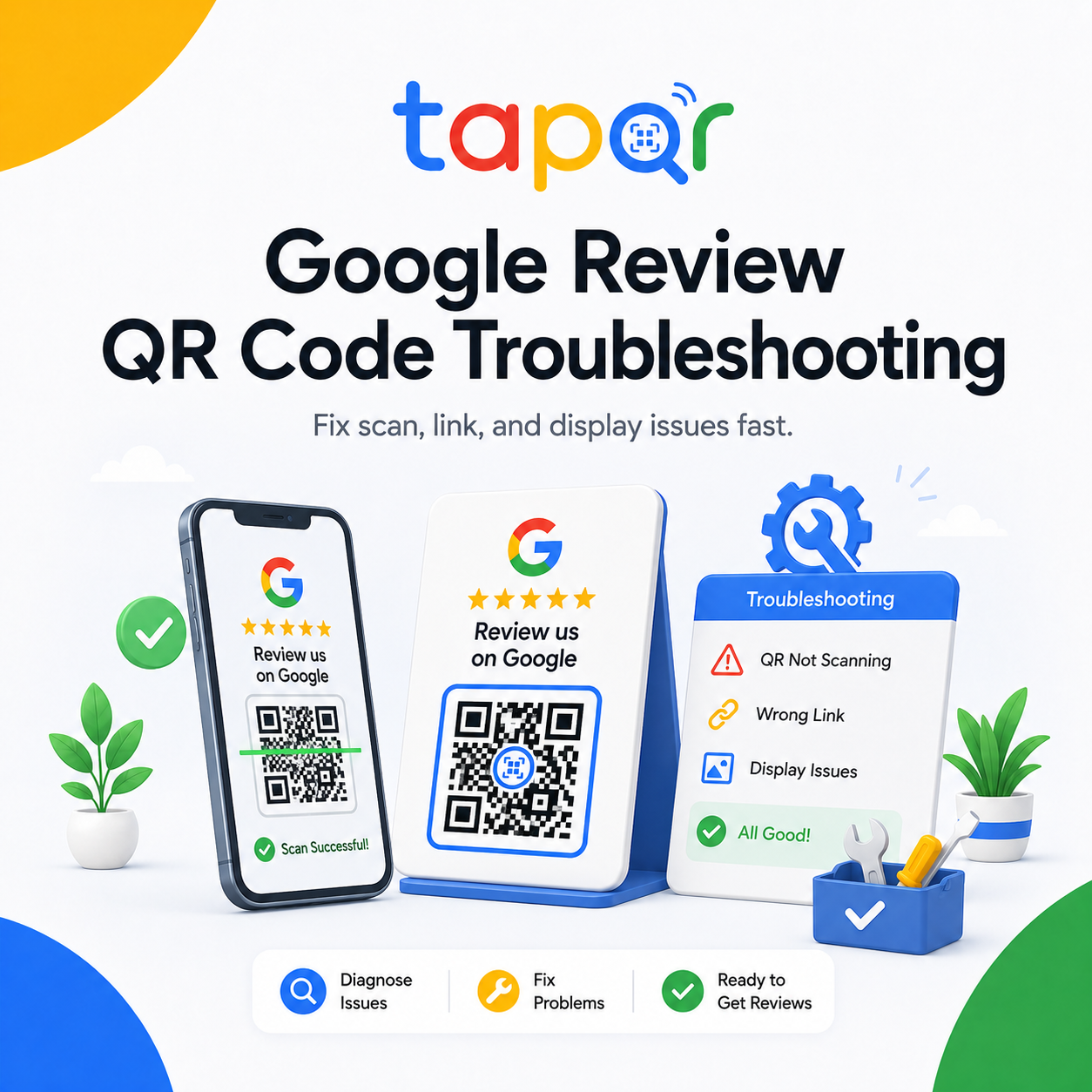
Separate scan problems from link problems.
A QR code can fail because the phone cannot read the printed code, or because the link behind the code is wrong or outdated. Test both separately before reprinting.
Scan the code, open the raw review link in a mobile browser and confirm the final page matches the correct business profile.
Common reasons a review QR code fails
Troubleshooting is faster when you isolate the exact failure point.
The phone cannot scan it
The code may be too small, low contrast, damaged, glossy or partly covered.
The link opens the wrong place
Old profile links, search result links or branch mix-ups can send customers away from the intended review flow.
The customer cannot post
Google may require sign-in, a supported account and access to the review feature before a review can be submitted.
Troubleshooting checklist
Use this order so you do not reprint before knowing what is wrong.
Scan from two phones
Try at least one Android and one iPhone if possible. If both fail, inspect the printed QR quality.
Open the raw link
Type or paste the link behind the QR into a phone browser. If it fails, the QR design is not the main issue.
Check the final destination
Confirm that the link points to the correct branch and review flow, not a general Maps result.
Replace damaged prints
Reprint cards that are scratched, stained, folded, cropped or reflective.
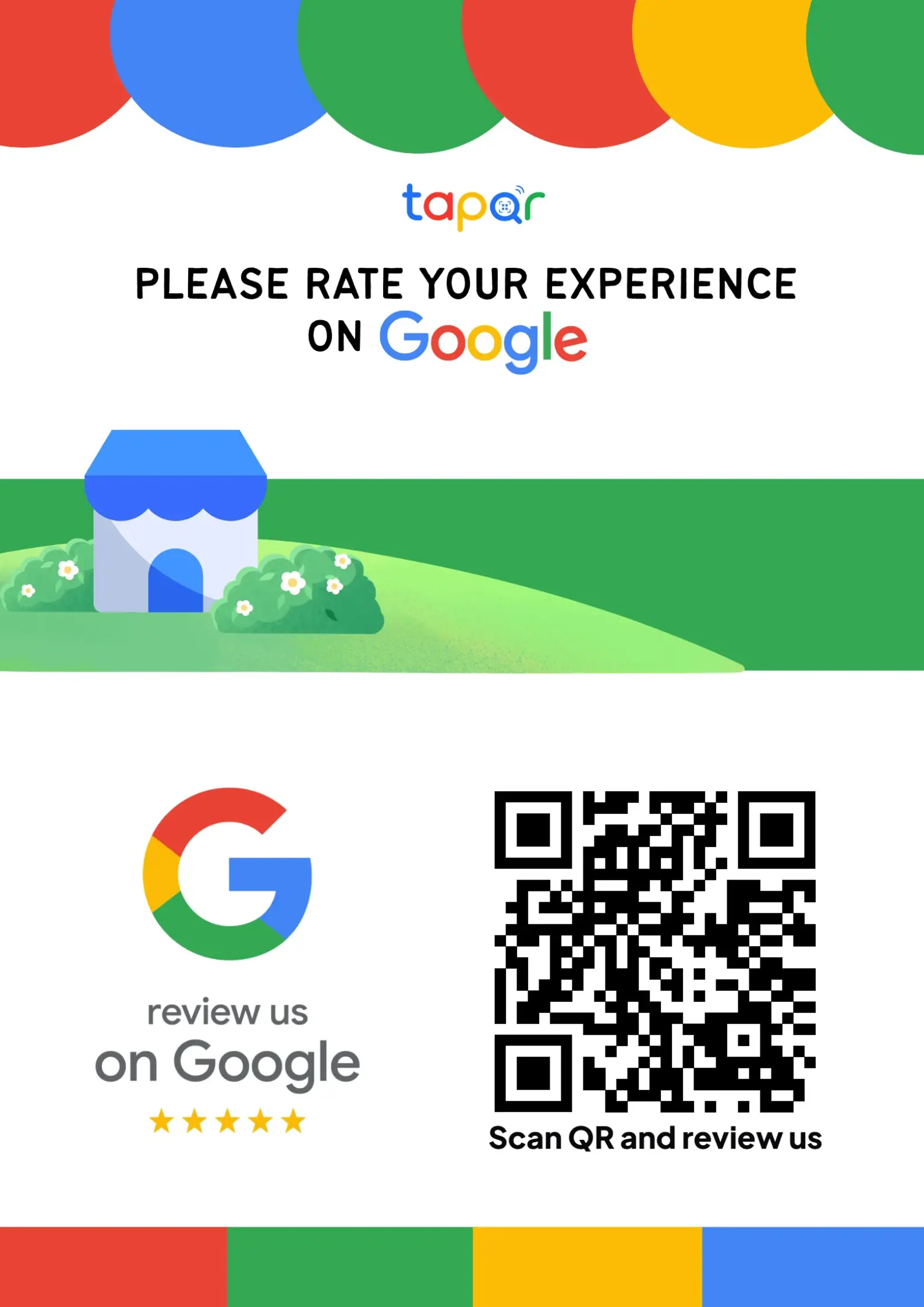
How TapQR helps prevent broken QR experiences
TapQR gives you one review QR path and direct link to test before using it on cards, posters, receipts or follow-up messages.
- Use one known review destination instead of scattered staff links.
- Test the QR code and direct link before printing new materials.
- Update the customer-facing prompt if your review workflow changes.
A simple path from setup to customer review
Use TapQR as the access layer between your physical customer moment and your Google review destination.
-
01
Check scan readability
Scan the printed code from the real customer distance and lighting.
-
02
Check link behavior
Open the raw review link on mobile and desktop.
-
03
Check listing match
Make sure the correct location and business name appear.
-
04
Update and reprint
Only reprint after the QR and link pass testing.
Why troubleshooting before reprinting matters
Avoid wasted print runs
You can fix a bad link before producing more cards or posters.
Protect customer trust
A working QR code feels more professional than a failed scan at checkout.
Keep staff confident
Staff are more likely to mention a QR code they know works.
Places to retest after fixing the QR
Check the QR code wherever customers actually scan it.
- Counter cards under shop lights
- Glossy table tents
- Receipt QR codes
- Takeaway packaging inserts
- Wall posters from standing distance
- WhatsApp or SMS review links
Mistakes that can keep the problem alive
A quick reprint is not enough if the link or workflow is still wrong.
Do not test only on Wi-Fi
Try mobile data too, because customers may not be connected to your network.
Do not crop quiet space
The blank area around the QR code helps phone cameras read it.
Do not use old branch links
Multi-location businesses should verify each branch QR separately.
Do not assume Google posting is instant
The QR opens the path, but Google controls account sign-in, review submission and display behavior.
Continue building a better review journey
Use these guides to connect the page topic with other TapQR review workflows.
Questions people ask about this topic
Short answers for business owners comparing review links, QR codes, cards and staff workflows.
Why is my Google Review QR Code not working?
The most common causes are poor print quality, low contrast, damage, glare, a wrong link or an outdated review destination.
How do I know if the QR code or the link is broken?
Open the raw review link directly in a phone browser. If the link works but the QR does not scan, fix the printed QR design.
Why does the QR code open Google Maps but not the review box?
The link may point to the listing rather than the review request flow, or Google may show different steps depending on device and account state.
Can a damaged card stop the QR from scanning?
Yes. Scratches, folds, stains, glare or cropping can make a QR code unreliable.
Should I create a new QR code if the review link changed?
If the destination changed and your current QR cannot be updated, create and test a new QR code before replacing printed materials.
Fix the review path before customers scan again
TapQR helps you create a clean Google review solution with a QR code and direct link that can be tested before printing.