Step-by-Step Setup Guide
How to Create a Google Review QR Code for Your Business
Want to generate now? Create your rechargeable review QR card in 30 seconds.
Open Review QR Generator (app.tapqr.in) →Turn your official Google review destination into a scannable, rechargeable QR code in under 2 minutes. Follow this 4-step blueprint to generate high-resolution print-ready cards and acrylic counter stands with a free trial.
- Official Google Review Link
- Smart Rechargeable Dynamic QR
- Instant Print-Ready PDF & PNG
- Free Trial Included (No Card)
How to Create a Google Review QR Code (Direct Method)
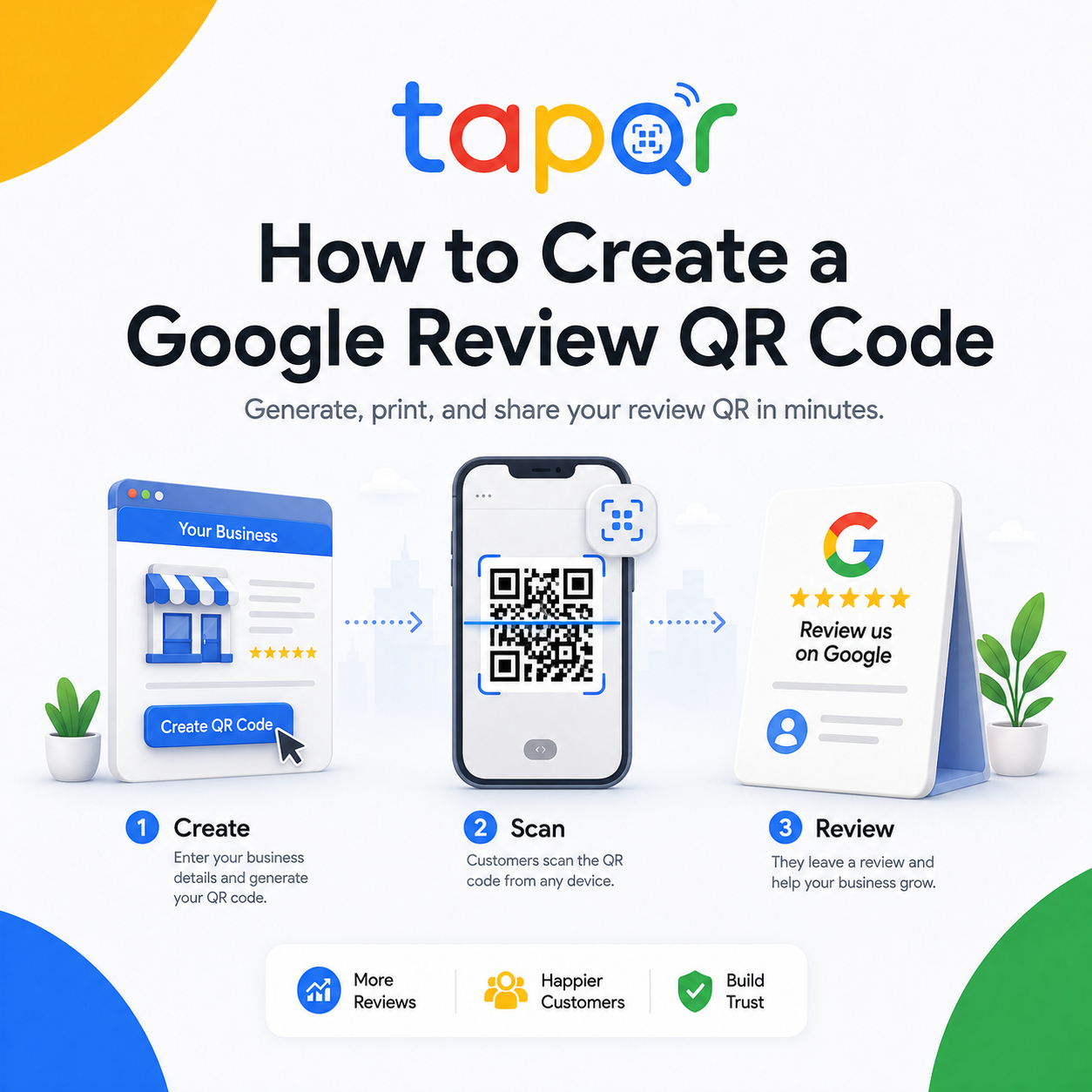
To create a Google Review QR Code, get your direct review link from your Google Business Profile, paste it into TapQR's dynamic generator, download a print-ready vector PDF or PNG with quiet zones, and display it in an acrylic stand on your counter.
A dynamic rechargeable QR code ensures that if your Google review destination URL ever changes, you can update it instantly from your dashboard without throwing away or reprinting your counter displays.
Common setup mistakes that waste printing costs
Most review card problems happen before printing: using static broken links, omitting camera quiet zones, or linking to a general Maps search instead of the review box.
Using a general Maps search link
A link to a map listing forces customers to search for the review tab. Always use the direct review dialogue link.
Hardcoding static QR codes
Static QRs cannot be edited. If your business Place ID refreshes or you rebrand, you must throw away all printed cards.
Missing quiet-zone padding
Printing codes without a 4-module white border prevents phone cameras from focusing quickly under shop lighting.
Step-by-step QR creation method
Follow this 4-step workflow to create and deploy an unbreakable Google Review QR code.
Step 1: Get your official review link
Log into your Google Business Profile dashboard, select Ask for reviews, and copy the direct short URL (e.g., https://g.page/r/.../review).
Step 2: Paste into TapQR Dynamic Generator
Paste your URL into TapQR to create a smart rechargeable QR code that allows remote destination updates anytime.
Step 3: Download crisp SVG/PNG/PDF
Download high-resolution print files formatted with built-in camera quiet zones and high contrast for instant scanning.
Step 4: Display on counter or stand
Print on cardstock, slip into standard acrylic counter stands (A6/A5), and place where customers pause naturally.
Simple ways staff can phrase the request
Use these as starting points, then let staff speak naturally.
Counter ask
This QR code opens our Google review page if you would like to share honest feedback.
Receipt note
Thank you for visiting. Scan to share your experience on Google.
Follow-up link
Here is our Google review link in case you would like to leave feedback later.

Create the review QR code with TapQR
TapQR turns your review destination into a smart rechargeable QR code. You can download print-ready vector PDF and PNG cards for acrylic stands, counter tents, and receipts, while updating destination links anytime from your dashboard.
- Print-ready vector PDF and PNG generator with no physical hardware fees.
- Rechargeable dynamic QR technology: update review links without reprinting.
- Universal compatibility across all iPhone and Android camera scanners.
A simple path from setup to customer review
Use TapQR as the access layer between your physical customer moment and your Google review destination.
-
01
Find your official review link
Copy the direct review request URL from your Google Business Profile dashboard.
-
02
Paste into TapQR Dynamic Generator
Paste your review link to generate a high-contrast rechargeable QR code.
-
03
Download crisp SVG/PNG/PDF
Export high-resolution print files with camera quiet-zone margins.
-
04
Display on acrylic counter stand
Place the printed card in an acrylic stand on your checkout counter or tables.
Why a dynamic setup matters
Zero reprint costs
If your Google link ever changes, update it from your TapQR dashboard without touching printed stands.
Instant customer flow
One scan opens the 5-star review rating box directly, eliminating manual search drop-off.
Universal scanning
100% compatible with native iOS and Android camera apps without requiring any third-party app.
Where to use the finished QR code
After creating the QR, use it in places where the customer can act without friction.
- Acrylic counter stand at checkout
- Dining table tent card
- Receipt or invoice footer
- Reception desk display
- Delivery package insert
- WhatsApp or email follow-up link
Best practices after creation
Keep your review cards clean, scannable, and policy-compliant.
Keep quiet zones intact
Never crop the white border surrounding the QR code modules.
Use matte paper finishes
Matte finishes prevent harsh glare from overhead store lights from blinding phone cameras.
Use one dedicated CTA
Keep review cards focused on reviews—avoid cluttering with Wi-Fi, menus, and socials.
Test with multiple phones
Scan the physical print proof with both iPhone and Android cameras from 30 cm away.
Continue building a better review journey
Use these guides to connect the page topic with other TapQR review workflows.
Questions people ask about this topic
Short answers for business owners comparing review links, QR codes, cards and staff workflows.
How do I create a QR code for Google reviews?
Copy your official review link from your Google Business Profile dashboard, paste it into TapQR's review QR generator, test the scan, and download your print-ready vector PDF or PNG poster. TapQR provides a free trial with no credit card required, followed by flexible recharge plans from ₹99.
What is a rechargeable dynamic review QR code?
A dynamic or rechargeable QR code allows you to change the destination review link from your online dashboard without reprinting your cards. If your Google link changes, your printed acrylic stands keep working.
Can customers scan this QR code without downloading an app?
Yes. 100% of modern iOS and Android smartphones have built-in QR readers directly inside their native camera apps. Customers simply point their camera and tap the link.
What file formats can I download for printing?
TapQR provides print-ready vector PDF, SVG, and high-resolution PNG files formatted for standard A6, A5, and 4x6 acrylic stands.
Create your Google Review QR code in 2 minutes
Join local businesses using TapQR. Generate your smart, rechargeable QR review card, download the print-ready PDF, and display it today.